User Guide
All these application information contents were created and developed by Renato Alexandre dos Santos Freitas since March 19th, 2011, when this project was born.
Processing of text files (.txt)
Introduction of multiple expressions
Creating abbreviations for paths
Solving txt files automatically
Run ATC from Windows command-line
Run ATC over Windows command-line
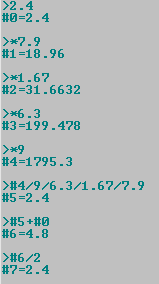
Reduction to the same denominator
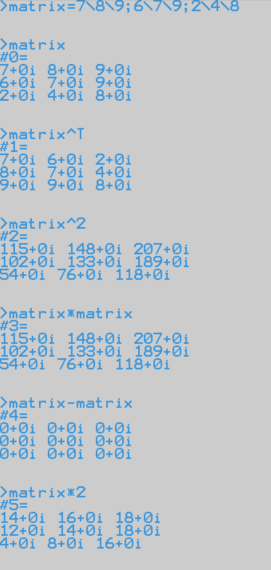
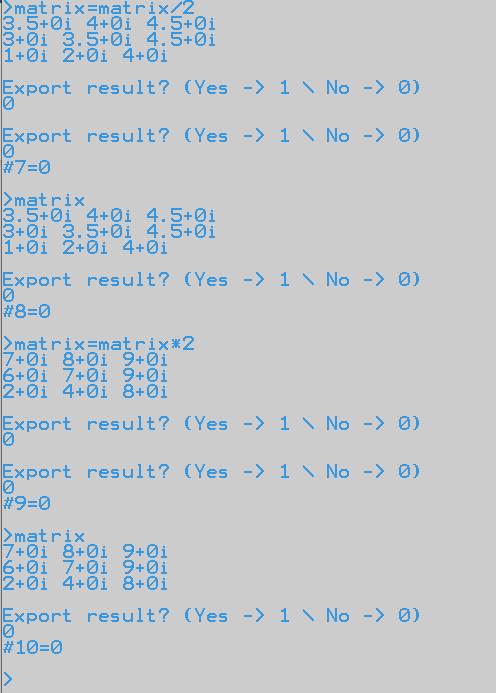
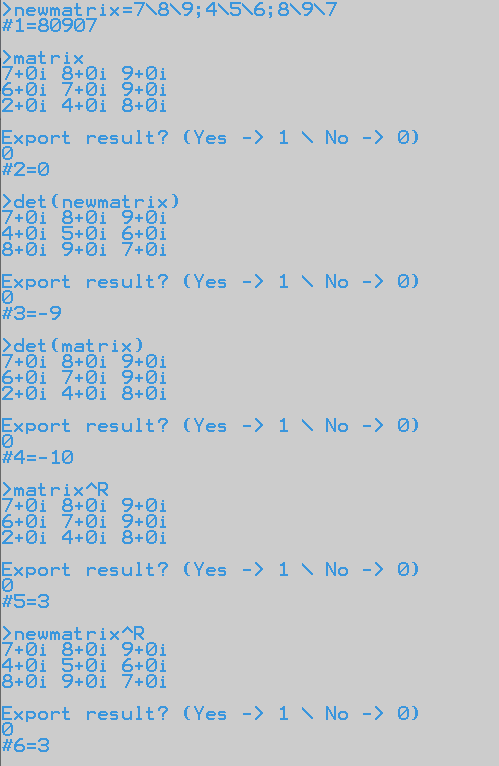
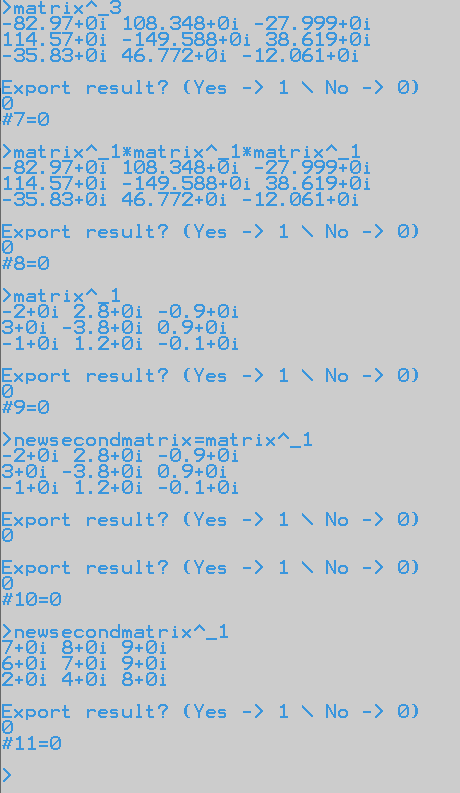
ATC as Arithmetic Matrix Calculator
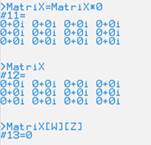
Creating matrices using math expression
Return or update a value from/to a matrix or vector
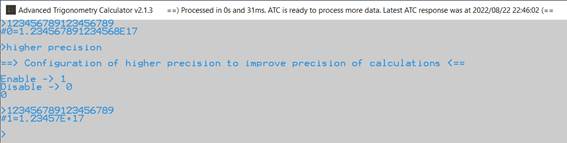
Higher precision to improve precision
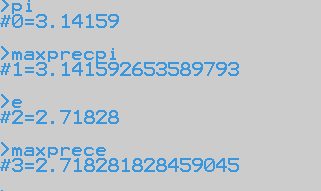
Higher precision on demand by prefix
Overview
Advanced Trigonometry Calculator is a rock-solid calculator, allowing you perform advanced complex math calculations.
Enter your complex math expression on its integrity and in the final press “Enter” button, after some instants the solution for your expression will be displayed.
Anyone can use this calculator since the syntax used is similar with scientific handheld calculators, e.g., TI 84-Plus.
Enabled functions
Trigonometry
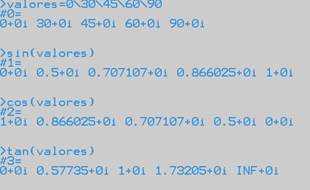
cos(), acos(), sin(), asin(), tan(), atan(), sec(), asec(), cosec(), acosec(), cotan(), acotan()
This calculator can perform trigonometric calculations with complex numbers as arguments.
Hyperbolic
cosh(), acosh(), sinh(), asinh(), tanh(), atanh(), sech(), asech(), cosech(), acosech(), cotanh(), acotanh()
This calculator can perform hyperbolic calculations with complex numbers as arguments.
Digital signal processing
sinc() (normalized sinc function)
This function can perform calculations with complex numbers as argument.
Logarithm
log(), ln(), logb b()
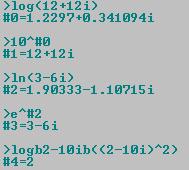
You can use all logarithm bases that you want with the simple function “logb b()”. Just replace the space on "b b" by your base “2, 4, 8, etc.” You can also use complex numbers as logarithm base.
You can put between “b b” simple arithmetic calculations but please do not put functions. Example: “logb(2+B10+O2+H2+sumo)b((2+B10+O2+H2+sumo)^cosec(30))”

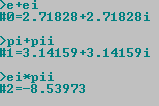
Example of complex numbers applying to logarithm functions:
Arithmetic
rest, quotient, rtD D(), sqrt(), cbrt(), afact(), abs() and operators "+, -, *, /, ^, !"
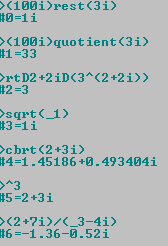
You can use these functions to make advanced calculations. For rest and quotient functions you just need enter dividend, function, and divider, e.g., “100rest(3)=1” or “100quotient(3)=33”.
With “rtD D()” function you can use all root degrees that you want. Just replace the space in the function part "D D" by your degree “2, 3, 4, etc”. For the remaining functions: sqrt() is equivalent to rtD2D() and cbrt() is equivalent to rtD3D().
You can put between “D D” simple arithmetic calculations but please do not put functions. Example: “rtD(2+B10+O2+H2+sumo-pi+e)D(sec(60)^(2+B10+O2+H2+sumo-pi+e))”

“afact()” is the inverse function of factorial operator “!”, e.g. “4!=24” so “afact(24)=4”.
The operators: addition, subtraction, multiplication, division, exponential, and factorial.
The negative character used is ‘_’, so to enter “-5” value, you need to enter “_5”.
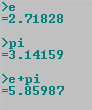
e, pi, -INF and INF are mathematical values that user can make use to perform math calculations.
Statistics
gerror(), gerrorinv(), gerrorc(), gerrorcinv(), qfunc(), qfuncinv()
“gerror()” is the error function also called “Gauss error function”; “qfunc()” is the Q-function.
And on the functions above “inv” means inverse.
Matrices
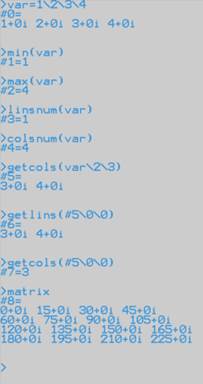
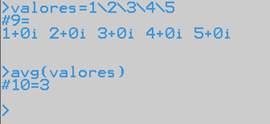
avg(), min(), max(), linsnum(), colsnum(), getlins(), getcols()
Commands
Handling App environment
|
Commands |
Action |
|
clean |
Let you clean the environment-resolution calculations window, if you enter many expressions with just one execution of this program, you will find it helpful. |
|
exit |
Let you exit of application, closing the program. |
|
about |
Let you access the file “About execution of application.txt” that is inside the application. Avoiding you open this file. |
|
clean history |
Let you clean the file “history.txt” with your entered expressions, respective answers, and current time. |
|
user guide |
Let you open this user guide. |
|
update |
Let you download the latest version of the application. |
|
update x64 |
Let you download the latest x64 version of the application. |
|
update portable |
Let you download the latest portable version of the application. |
|
reset all |
Let you delete all application ".txt" files, less the files of application info and application license. Application will be as it had finished installation, or portable version had finished its unpacking. |
|
reset all now |
The same as above but ATC will restart automatically. |
|
reset settings |
Let you delete only the files that were created due to configurations in the application made by the user. |
|
reset settings now |
The same as above but ATC will restart automatically. |
|
colors |
Let you configure the text and background colors. |
|
dimensions |
Let you configure the dimensions, i.e., columns and lines numbers of environment-resolution calculations window. |
|
window |
Let you configure the position (X-axis, Y-axis), width, and height of application window. |
|
run atc |
Let you use the application on multiple execution. When you enter this command, you ask to run the application executable one more time, and you can keep doing it so on. |
|
restart atc |
Let you close the application and then execute it (restart app). |
|
history |
Let you open history file that has your application use history. |
|
predefine txt |
Let you predefine a “.txt” file for easily solve it later. |
|
solve txt |
Let you solve your predefined “.txt” file or others if you had created abbreviations for paths, e.g., “solvetxt(calculations)” |
|
see abbreviations |
Let you see the abbreviations created with their corresponding path. |
|
eliminate abbreviations |
Let you eliminate all the abbreviations created until this moment. |
|
enable txt detector |
Let you enable again the txt detector feature. Check the section “Features” looking for ”Txt detector”. |
|
eliminate strings |
Let you eliminate all the strings created until this moment. |
|
see strings |
Let you see a list with the string’s names. You can see the strings accessing “Strings” folder by enter “strings”. |
|
auto solve txt |
Let your txt file be automatically solver after that in the last of the file be detected the flag “SOLVE_NOW”. Check the section “Handling features” looking for “Solving txt files automatically”. |
|
atc from cmd |
Let you use atc from Windows command-line (cmd.exe). Check the section “Handling features” looking for “Run ATC from Windows command-line”. |
|
atc over cmd |
Let run atc over cmd, i.e., when you are in cmd and enter this command, you will be able to start doing your mathematical tasks in cmd as you were running ATC directly. |
|
donate |
Let you be redirected to a Web page where you can donate any monetary value, to help the development of this app. |
|
atc facebook |
Let you be redirected to the facebook page of this app. |
|
atc sourceforge |
Let you be redirected to the page where this app is originally release. In this page you always find the latest version available for download. |
|
current settings |
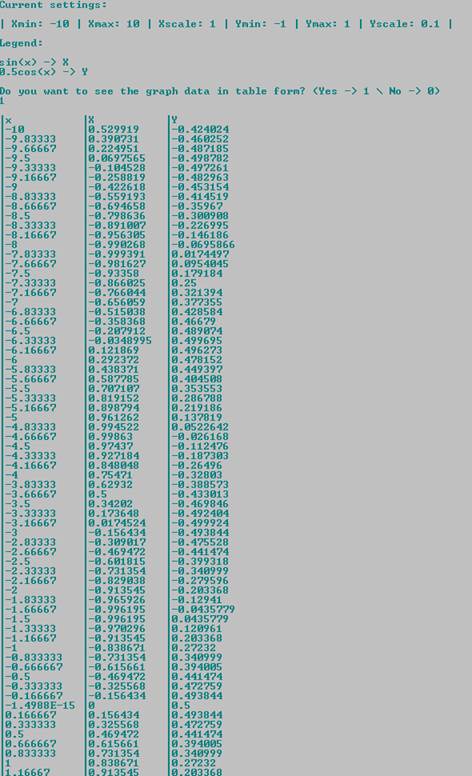
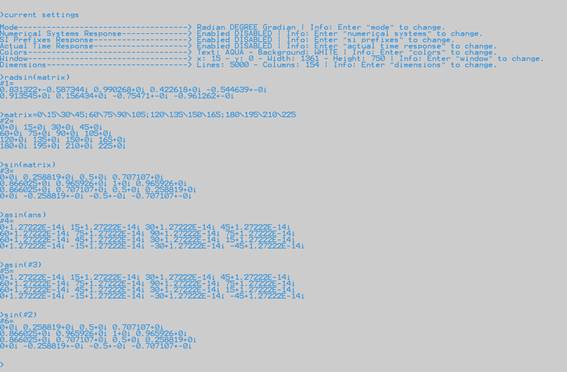
Let you know the current state of the ATC settings. This way, you will be able to easily configure ATC for your customized use. Check the subsection “Handling features” to find an image illustrating what would be shown to you. Look for “Current settings”. |
|
auto adjust window |
Let ATC auto adjust the ATC window to the current screen. |
|
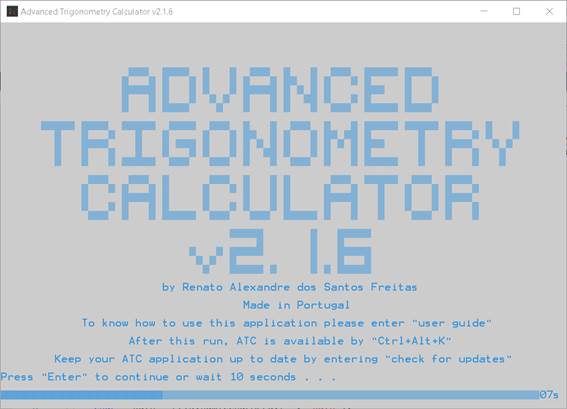
disable atc intro |
Let you disable ATC intro window. This way you will go directly to the environment-resolution calculations. |
|
enable atc intro |
Let you enable ATC intro window. This way you will face intro window again with some info like the command to access this user guide. |
Handling Calculations
|
Commands |
Action |
|
mode |
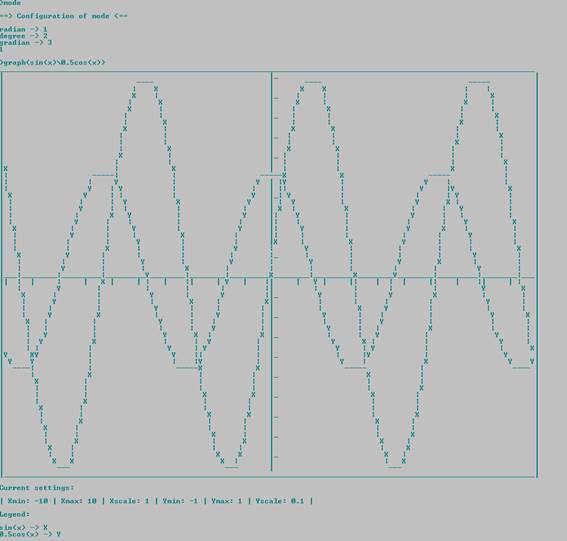
Let you choose what calculation mode you want to use in the trigonometric functions for the next expressions that you enter with trigonometric functions, by default is the degree mode until you configure another one. |
|
verbose resolution |
Let you enable or disable the feature of verbose resolution. Check “Calculations feature” subsection at the section “Features”. |
|
see variables |
Let you see the created variables with their values. |
|
renamed variables |
Let you see the created variables that have automatic renaming for correct processing. |
|
eliminate variables |
Let you eliminate all the created variables until this moment. |
|
numerical systems |
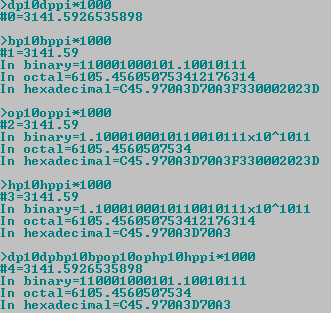
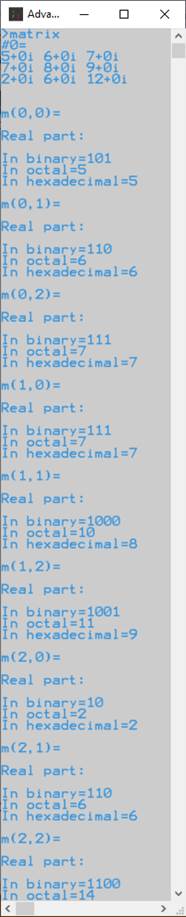
Let you enable or disable the functionality of show the answer for an expression entered, in the other three popular numerical systems, i.e.: binary, octal, and hexadecimal. |
|
si prefixes |
Let you enable or disable the functionality of show the answer for an expression entered, in the SI prefixes form, e.g., “1µ”. |
|
see results |
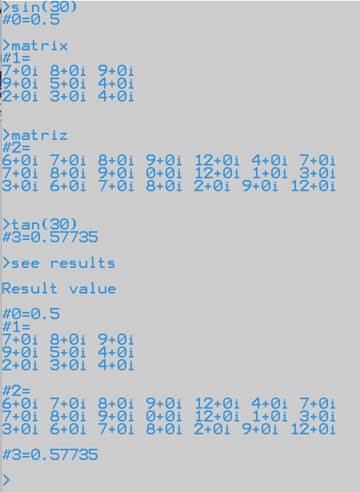
Let you see the calculated results with their values. |
|
eliminate results |
Let you eliminate all the calculated results until this moment. |
|
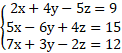
solve equations system |
Let you solve equations systems. Example of use: "solve equations system(2\4\9;5\6\12)" resulting on the solutions "x1=-0.75" and "x2=2.625". Check the section “Features” looking for “Equations systems solver”. |
|
solve quadratic equation |
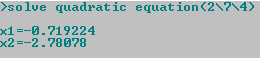
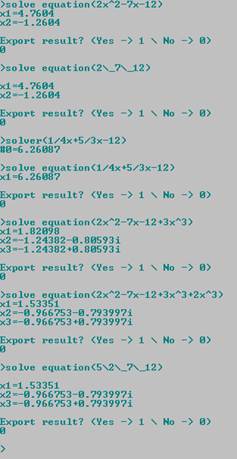
Let you solve quadratic equation. Example of use: “solve quadratic equation(2\7\12)” resulting on the solutions “x1=-1.75+1.71391i” and “x2=-1.75-1.71391i”. Check the section “Features” looking for “Quadratic equations solver”. |
|
solve equation |
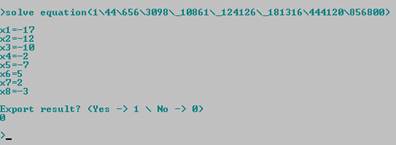
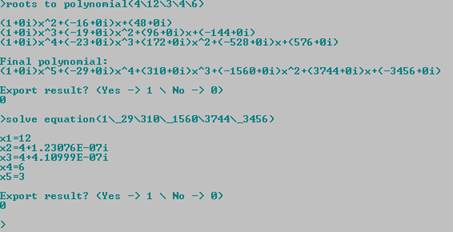
Let you know the zeros of a function (polynomial). E.g., “x^3+8x^2+x-42” -> “solve equation(1\8\1\_42)” -> x1=-7; x2=2; x3=-3 |
|
triangles rectangles solver |
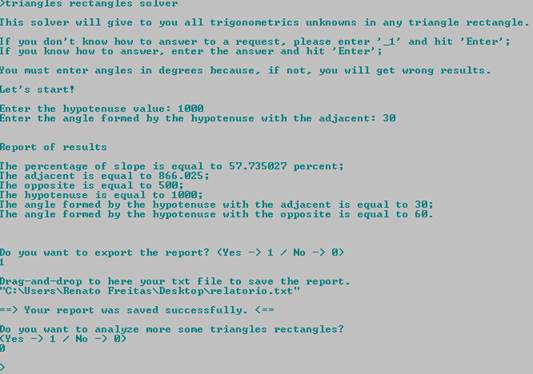
Let you discover all the unknows of any triangle rectangle. Angles must be entered in degrees. In the sub-section “Calculation features” you can check a screenshot as example of use of this feature. Look for “Triangles Rectangles Solver”. |
|
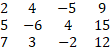
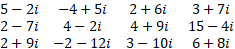
arithmetic matrix solver |
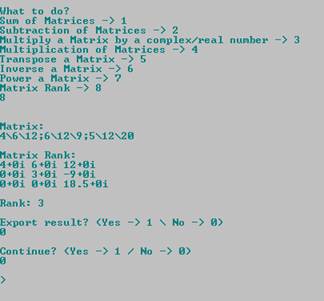
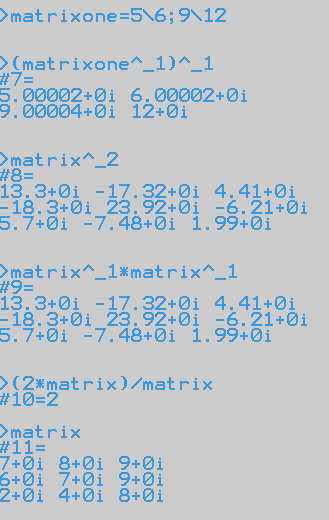
Let you make various operations: sum/subtraction of matrices, multiply a matrix by a complex/real number and multiplication of matrices. In the sub-section “Calculation features” you can check a screenshot as example of use of this feature. Look for “Arithmetic Matrix Solver”. |
|
roots to polynomial |
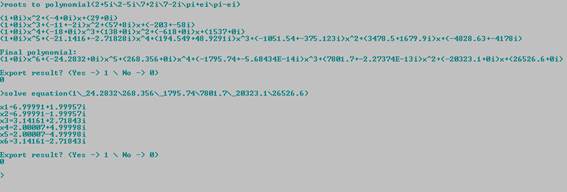
Let you get polynomial equation from its roots. Example of use: “roots to polynomial(2\7\12)” resulting on the polynomial “(1+0i)x^3+(-21+0i)x^2+(122+0i)x+(-168+0i)”. Check the section “Features” looking for “Roots to Polynomial” |
|
financial calculations |
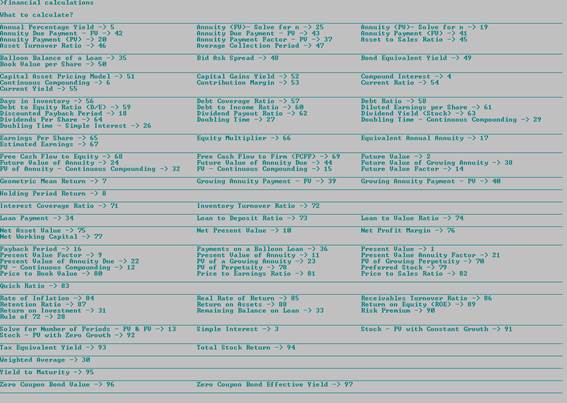
Let you calculate finance formulas. You enter the inputs and get the outputs. |
|
graph settings |
Let you configure your graph settings. (Xmin, Xmax, Xscale…) |
|
graph |
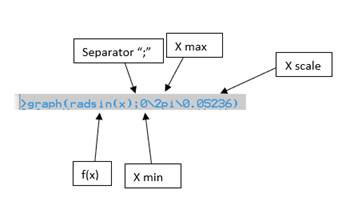
Let you visualize a graph of one or more functions of your interest. You can visualize multiple functions, e.g: graph(30sin(x)\15cos(x)), also after the visualization, ATC will ask you to know if you want to see the graph data in a table view. |
|
geometry calculations |
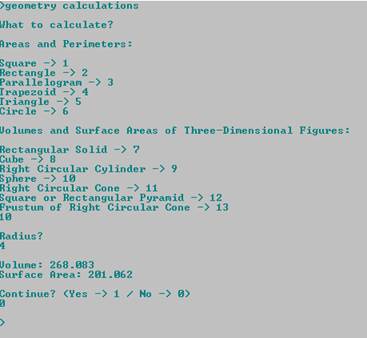
Let you calculate areas and volumes. You enter the inputs and get the outputs. Check the section “Features” looking for “Geometry Calculations”. |
|
statistics calculations |
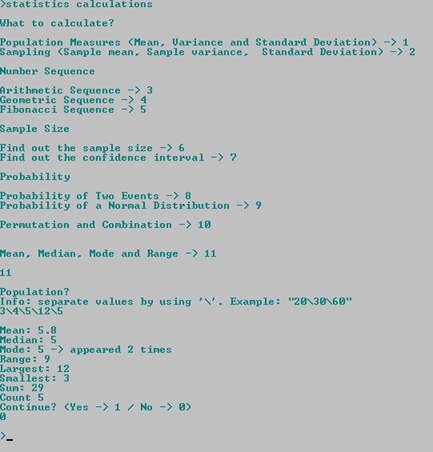
Let you calculate many parameters related with statistics. Check the section “Features” looking for “Statistics Calculations”. |
|
physics calculations |
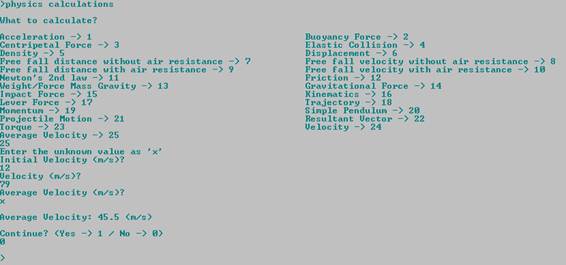
Let you solve many physics formulas getting the value unknown of the formula that you want to solve. Check the section “Features” looking for “Physics Calculations”. |
|
unit conversions |
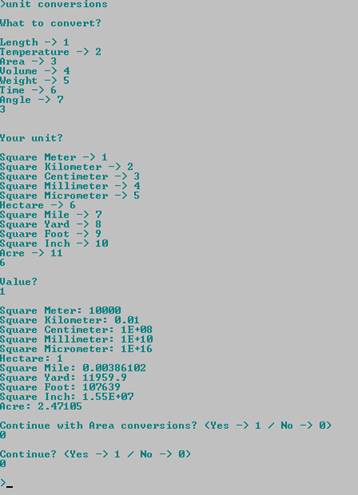
Let you convert parameters of time, temperature, weight, length, area, volume, and angle. You can find an image as example in the Calculation features section, looking for “Unit Conversions”. |
|
microeconomics calculations |
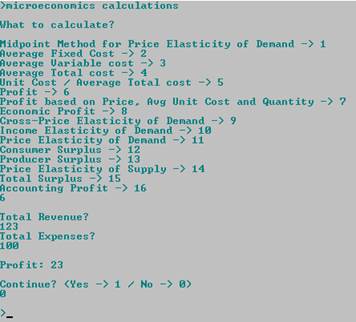
Let you calculate Microeconomics formulas. You enter the inputs and get the outputs. |
|
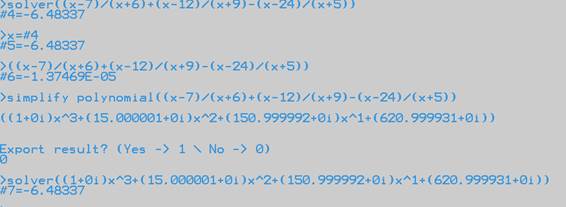
simplify polynomial |
Let you get your polynomials simplified processing addition, subtraction, multiplication, division, and parentheses to simplify complex polynomials. Example of use: “simplify polynomial(((x-8)(x-9)(x-12))/(x-8)+((x-12)(x-20)(x-24))/(x-12))” resulting on the polynomial “((1+0i)x^2+(_14+0i)x+(_284.333+0i))” Check the section “Features” looking for “Simplify Polynomial” |
|
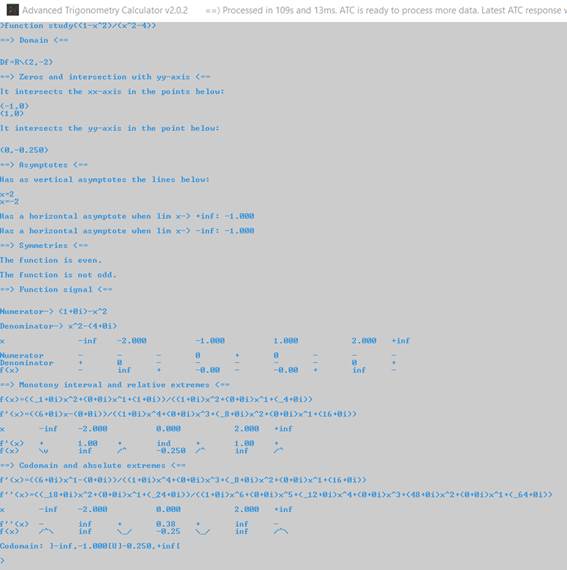
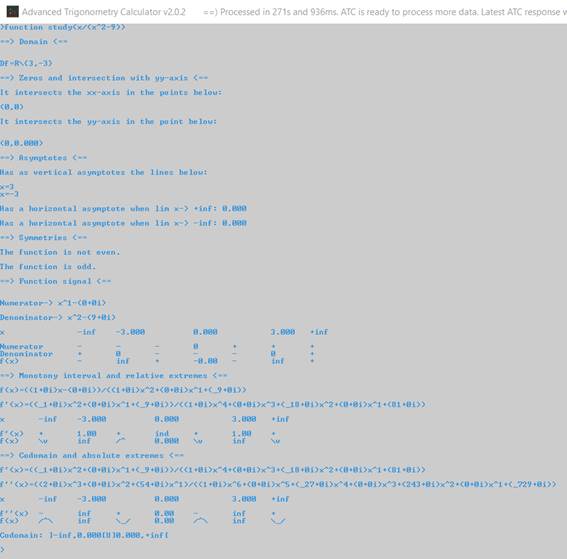
function study |
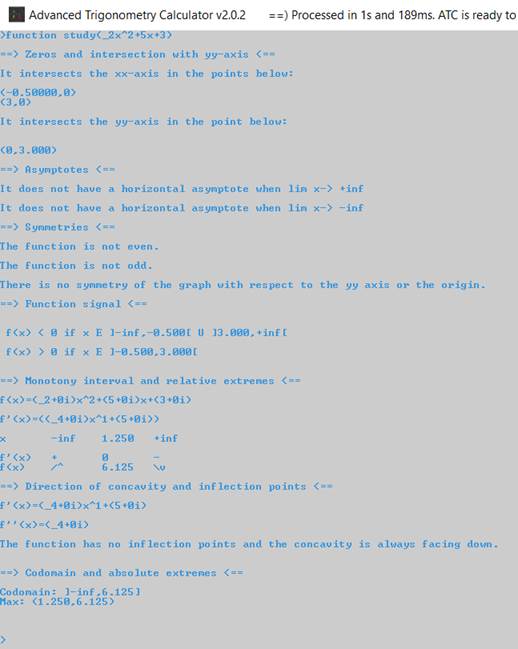
Let you visualize the study of a given function. Example of a valid command: “function study((1-x^2)/(x^2-4))”. You can find some images as examples in the Calculation features section, looking for “Function Study”. |
|
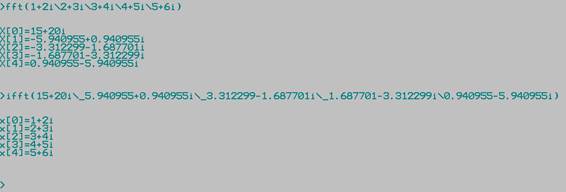
fft |
Let you calculate the Fast Fourier Transform. You can find an image as example in the Calculation features section, looking for “FFT and IFFT”. |
|
ifft |
Let you calculate the Inverse Fast Fourier Transform. You can find an image as example in the Calculation features section, looking for “FFT and IFFT”. |
|
higher precision |
Let enable ATC to provide values in optimized scientific notation, with at most fifteen decimal places. |
|
create matrix |
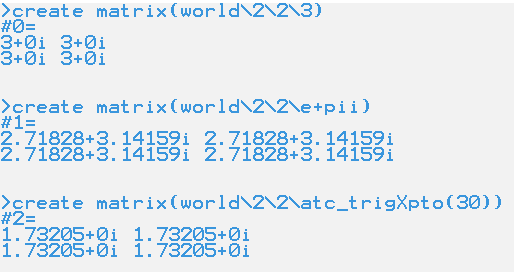
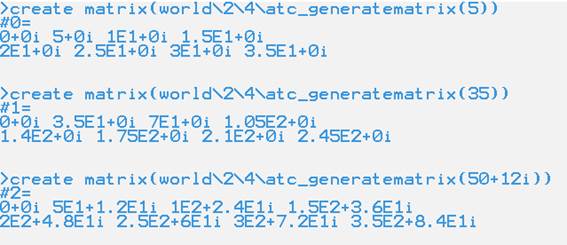
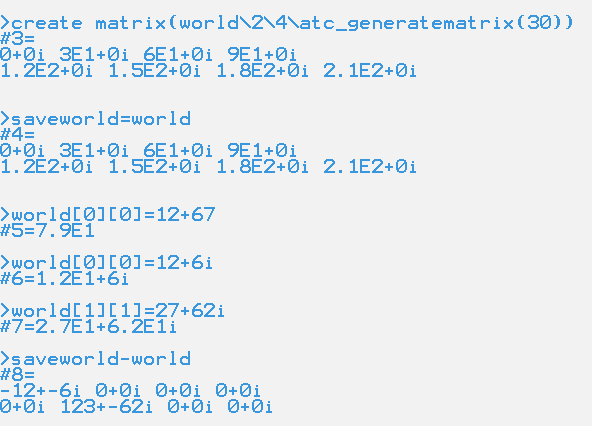
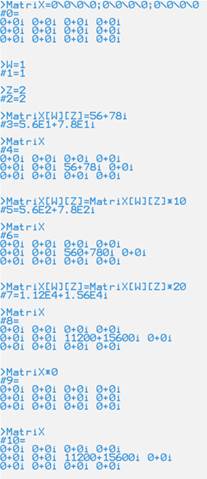
Let you create with ease matrices based on a math expression. User functions are supported in this feature. For images look to “Creating matrices using math expression” on the section of Calculation features. |
Handling App folders
|
Commands |
Action |
|
atc folder |
Let you open the application folder. |
|
source code |
Let you open the source code folder. |
|
to solve |
Let you open the folder with the txt files for txt detector feature. Check the section “Features”. |
|
scripts examples |
Let you open the folder of scripts examples. |
|
user functions |
Let you open the folder of user functions. |
|
strings |
Let you open the folder with the strings created by the user. |
Handling Time
|
Commands |
Action |
|
day of week |
Let you check the day of week corresponding to a certain date, e.g., “dayofweek(d11m7y2014)” has as response “Friday”. |
|
stopwatch |
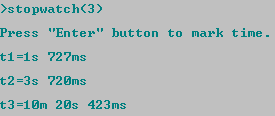
Let you measure how much time you spend for anything. Entering “stopwatch(3)” let you mark three times. To mark times, you just need press the button “Enter”. Check the section “Features” looking for “Stopwatch”. |
|
run stopwatch |
The same as above but will have an independent window from atc for the stopwatch feature. E.g “run stopwatch(3)”. |
|
timer |
Let you control the time you spend for anything. Entering “timer(0:5:0)” you will be notified when passed 5 minutes since the press of button “Enter”. Check the section “Features” looking for ”Timer”. |
|
run timer |
The same as above but will have an independent window from atc for the timer feature. E.g., "run timer(0:5:0)". |
|
big timer |
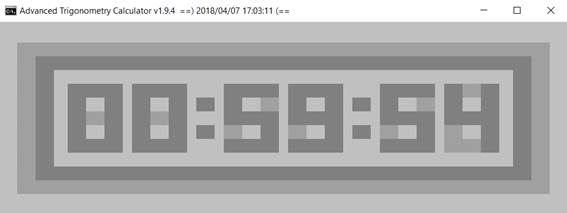
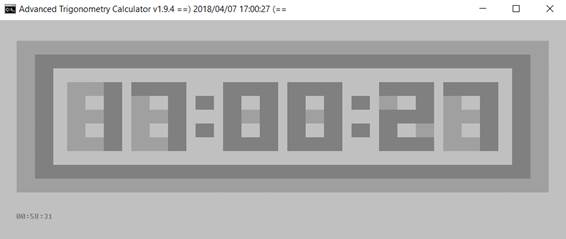
Let you control the time you spend for anything. Entering “big timer(0:5:0)” you will be notified when passed 5 minutes since the press of button “Enter”. Check the section “Features” looking for “Big timer”. |
|
run big timer |
The same as above but will have an independent window from atc for the timer feature. E.g., "run big timer(0:5:0)". |
|
clock |
Let you use a clock. Entering "clock(0:5:0)" you will have a clock for 5 minutes. Check the section “Features” looking for “Clock”. |
|
run clock |
The same as above but will have an independent window from atc for the clock feature. E.g., "run clock(0:5:0)". |
|
big clock |
Let you use a big clock. Entering "big clock(0:5:0)" you will have a clock for 5 minutes. Check the section “Features” looking for “Big clock”. |
|
run big clock |
The same as above but will have an independent window from atc for the clock feature. E.g., "run big clock(0:5:0)". |
|
time |
Let you check the current time for a moment. |
|
calendar |
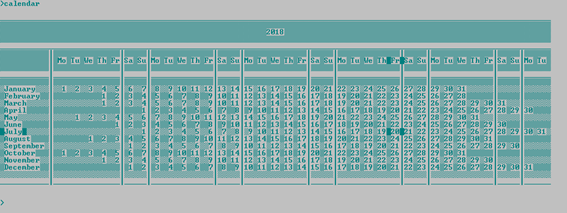
Let you check the current year calendar entering “calendar” or others if entered a year, e.g., “calendar(1991)”. |
|
actual time response |
Let you enable or disable the functionality of show the current time after having been shown an answer for an expression entered. |
|
time difference calculations |
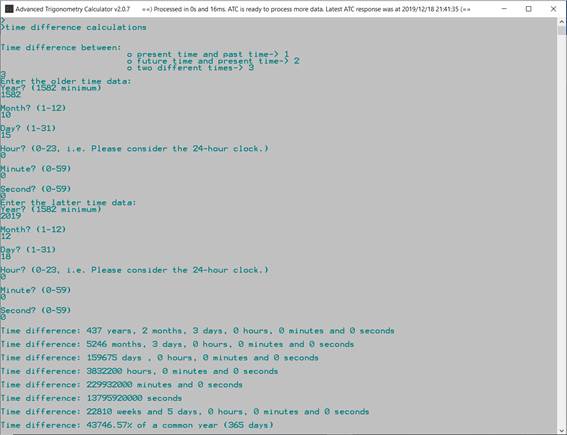
Let you know the difference time between two dates with time. |
Handling PC
|
Commands |
Action |
|
shutdown |
Let you shut down your PC. |
|
shutdown now |
Let you shut down your PC immediately. |
|
restart pc |
Let you restart your PC. |
|
restart pc now |
Let you restart your PC immediately. |
|
hibernate |
Let you hibernate your PC. Administrator privileges are required. |
|
log off |
Let you log off your PC. |
|
sleep |
Let you sleep your PC. Administrator privileges are required. |
|
lock |
Let you lock your PC. |
Sorting
|
Commands |
Action |
|
ascending order |
Let you put a set of real values in ascending order. Example: Input: ascending order(_1\5\_12\14\_67\50) Output: -67, -12, -1, 5, 14, 50 |
|
descending order |
Let you put a set of real values in descending order. Example: Input: descending order(_1\5\_12\14\_67\50) Output: 50, 14, 5, -1, -12, -67 |
|
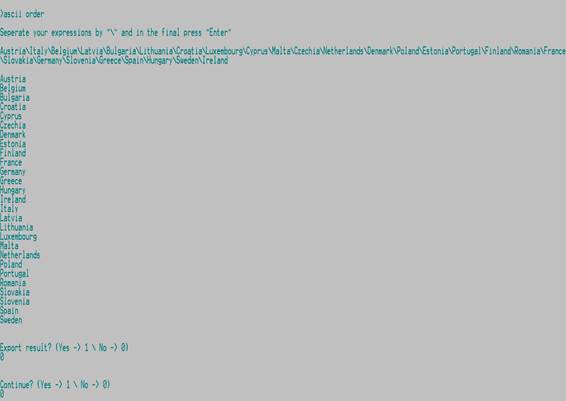
ascii order |
Let you put a set of real values in ascii order. Check the section of Sorting |
|
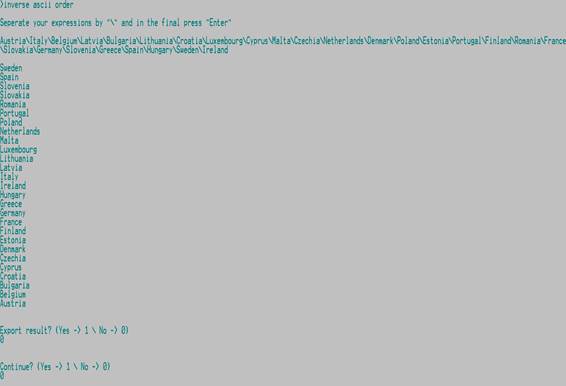
inverse ascii order |
Let you put a set of real values in inverse ascii order. Check the section of Sorting |
Features
History
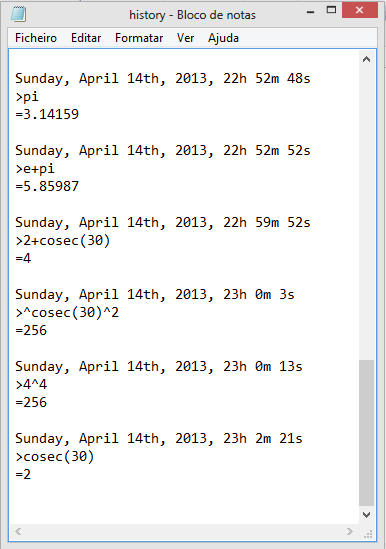
To help you this application creates a text file with the expressions that you have entered, their answers and current time. Its name is "history.txt" you can find it inside the folder that contains the application executable in use. You can also enter “history” and see the file automatically. So, an example:
Processing of text files (.txt)
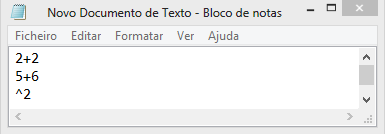
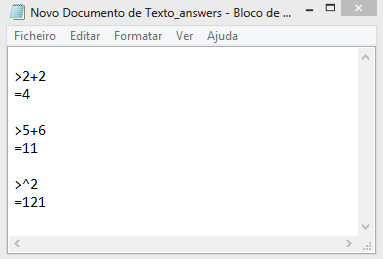
If you create a “.txt” file with expressions separated by ‘,’ or by paragraphs (by pressing “Enter” button), saving the file. Dragging the icon of the file to the environment-resolution calculations and pressing “Enter” button, the application reads the file expressions and gives to them an answer. Creating a new file with the expressions and their answers. This file has the same name of the original but terminates on “_answers”. So, examples:
Original file:
Interaction with application:

New file with answers:
You can also predefine your “.txt” file and solve it easily, using “predefinetxt” and “solvetxt”. Check commands page for details.
User configurations
This application lets you configure the dimensions, the colors, the window, and the mode. If you want to reset these configurations:
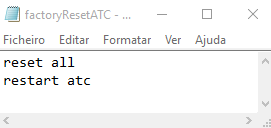
· Enter “reset all” to put app as it had finished its installation, or it had finished its unpacking.
· Enter “reset settings” to put the configurations by default.
For both commands you need to restart application. You can do it by enter “restart atc”.
Reuse of entered expressions
You can use the arrow keys "up" and "down" of keyboard to reuse expressions that you have already entered, you can edit them, and so, get the wanted answer in a rapid and effortless way.
Use of the space key
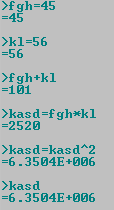
Feel free to use the key of "space" of your keyboard. If you like to use some space when you are entering an expression, stay know that you can do it freely, just on the environment-resolution calculations. So, an example:
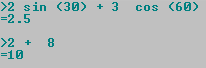
As you notice the use of the space key does not affect the correct processing of the expressions.
Introduction of multiple expressions
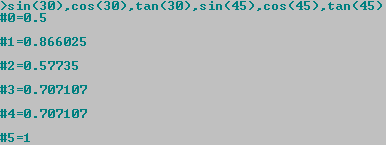
You can enter multiple expressions by pressing “Enter” button just a time. For it you need separate your expressions using "," (comma). Take an example:
Creating abbreviations for paths
You can become your work simpler if you create abbreviations for paths. Take an example:

The first expression defines your abbreviation and processes the “.txt” file. The second expression processes the “.txt” file that abbreviation corresponds to.
Txt detector
Txt detector provides a quick way to process text files (.txt). Txt detector detects “.txt” files that were not solved yet. It can demand the processing of multiple files at time. Its use is simple, just drag or create a “.txt” file on the “To solve” folder and run the app or if app is already running press “Enter” button. You will be asked if you want to solve the detected files. You will find the folder “To solve” inside of the app folder, enter “to solve” to directly access the folder.
You can enable the feature in case you disabled it. Enter “enable txt detector”.

Solving txt files automatically
You can automatically solve the txt file that you are editing for ATC.
1) Access
ATC and enter: “auto solve txt” 
2) Drag
the txt file that you are editing to the environment-resolution calculations of
ATC and press “Enter”. 
3) Edit
your file. You must not forget to put the flag in the last line when your file
is ready to be solved.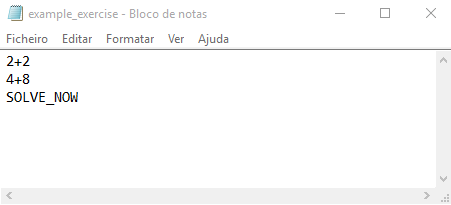
4) And
to automatically solve it: Press “Ctrl+s” (e.g., in case you are using
notepad.exe). The file with the answers must appear in instants. 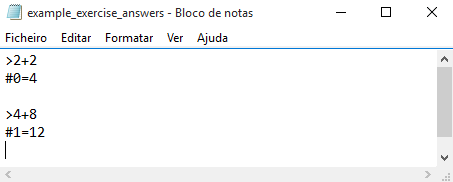
5) Note
that the flag “SOLVE_NOW” is automatically removed from the original file after
it has been processed.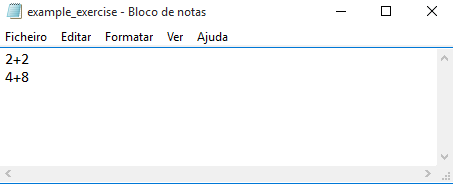
Run ATC from Windows command-line
Have you ever dreamed with a great calculator for Windows command-line?
All you need to do is enter the command “atc from cmd” and permit changes giving administrator privileges to perform the activation of the feature.
Activation steps:
1) Enter the command “atc from cmd” in ATC.

2) You will be asked to permit changes by Windows command-line. You need to click on “Yes” button.
3) If you have said yes to the changes, you can now, try use atc from cmd. The syntax to use is simple as shown below. Note that you need to open a new Windows command-line after the activation.
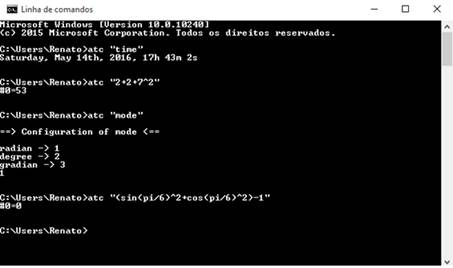
4) Now use your imagination and enjoy Advanced Trigonometry Calculator in your Windows command-line.
5) Now with the activation you can easily open atc. Just open cmd.exe and enter “atc”.
This feature permits the complete use of ATC in any user
path where user is navigating in the Windows command-line.
Note: If for some reason you want disable this feature. Check this link: http://www.howtogeek.com/118594/how-to-edit-your-system-path-for-easy-command-line-access/
Run ATC over Windows command-line
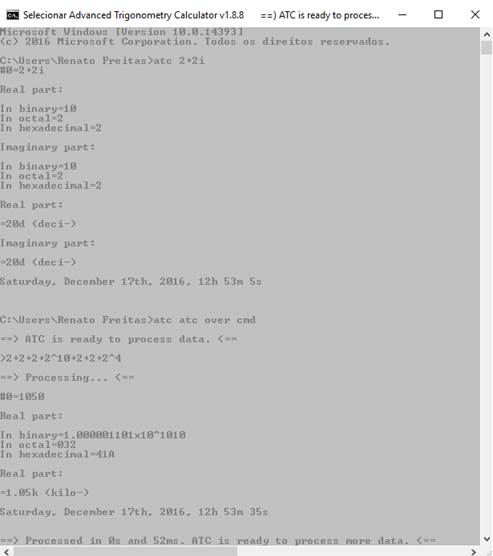
After entering the command “atc over cmd” you will be able to work in cmd as if you were running ATC directly by double click on the ATC executable. For reproduce this example, please do not forget entering the command “atc from cmd” and activate that feature.
Below is an example about what you can do.
Current settings
See the current settings of ATC to easily manage its use.

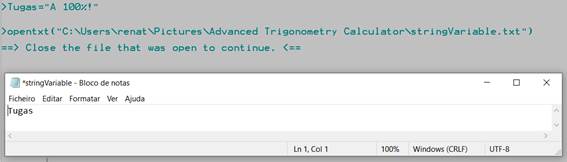
Opentxt
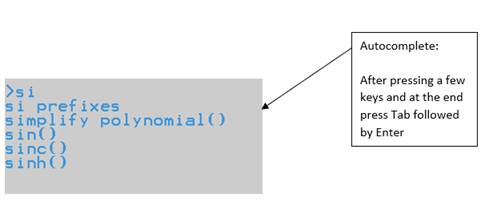
Autocomplete
print, get, and sprint
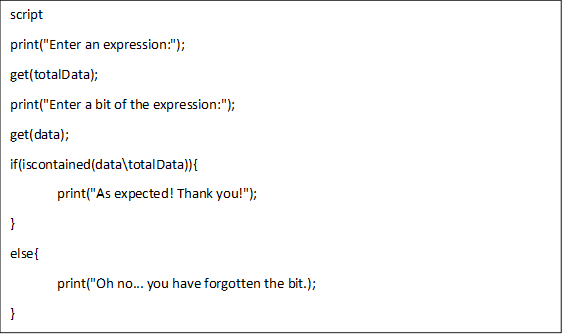
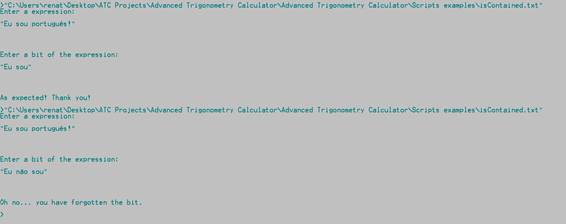
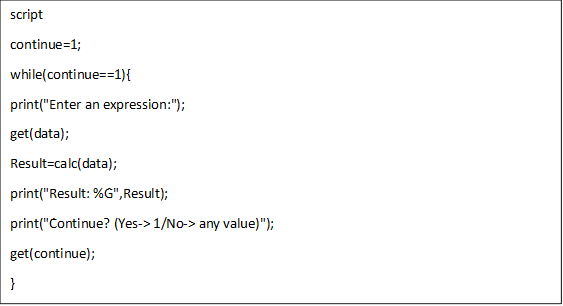
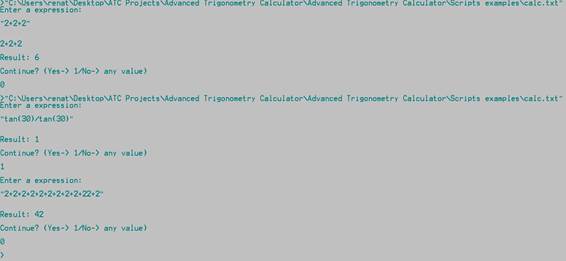
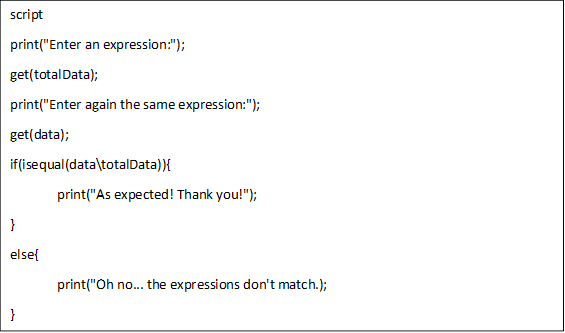
The goal of the scripting feature is to provide quick means to perform tasks repeatedly.
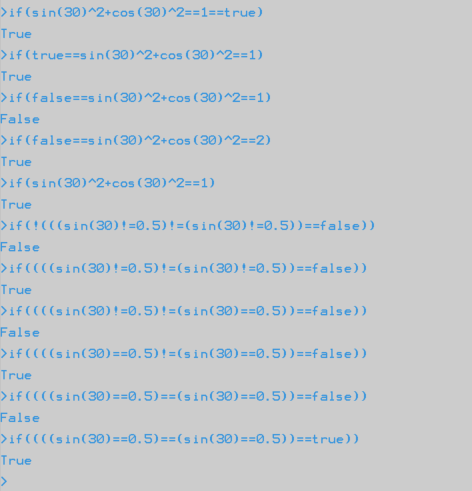
The scripting feature comprises the use of all mathematical functions, commands and features that the user can enjoy in the “environment-resolution calculations” and it is an extension of the processing of text files (.txt) feature. ATC folder has a sub folder called “Scripts examples” that you can easily access by enter “scripts examples”. As the folder name says it is a folder with examples of scripts that you can use/modify, and they serve as example for you to create your own atc scritps.
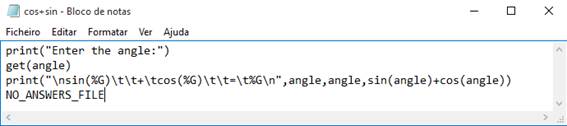
Script example:
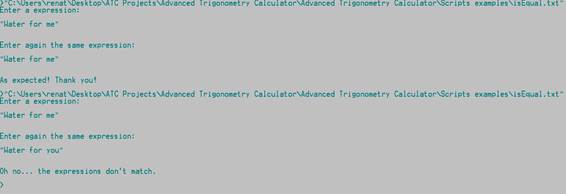
Its output:

You can find the script example above in the folder “Scripts examples”. Just drag and drop the file “cos+sin.txt” to the ATC environment-resolution calculations and press “Enter” key you will face the output.
As you may already understood there are print() and get() functions to print the output and get the input, respectively.
The print() function is an emulation of the printf() from C programming language, so the syntax is truly the same. If you know how to use printf() from C you know how to use print() function.
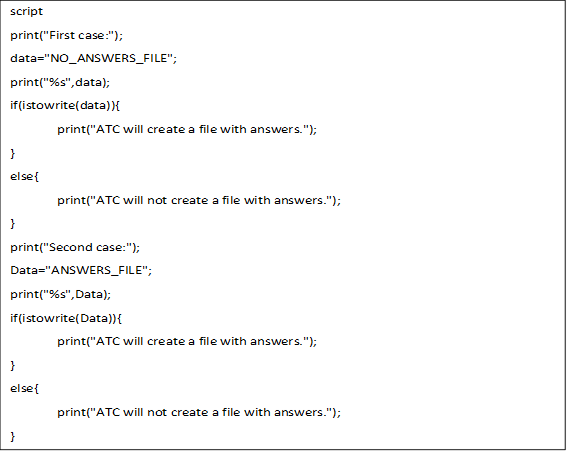
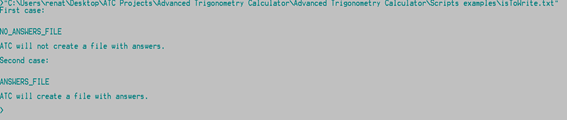
“NO_ANSWERS_FILE“ is a flag that informs the app that you do not want to save and see the answers file that is created after processing the inputted txt file .
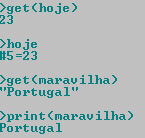
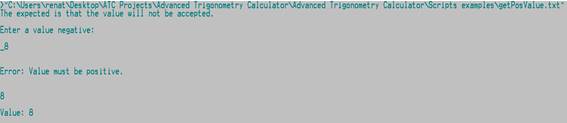
The get() function can read a string or an expression:
· To save a string you need the quotation marks for atc understand the input as text and save the string.
o Strings are saved in the folder “Strings” that is accessible by enter “strings” and can be listed by enter “see strings”.
· To save a value all that you need is to respond with an expression, atc will save the solution value as a variable.
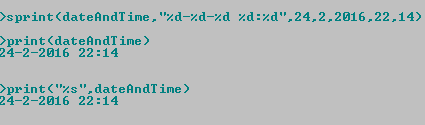
The sprint() function is an emulation of the sprintf() from C programming language, such as print() from printf().
As you may observe above, you have two ways to use the print(): you can print a string, in this case “dateAndTime” as print() acts like puts() from C programming language or you can use the printf() text syntax.
You can easily check the printf() syntax from the url:
http://www.cplusplus.com/reference/cstdio/printf/
Compose commands
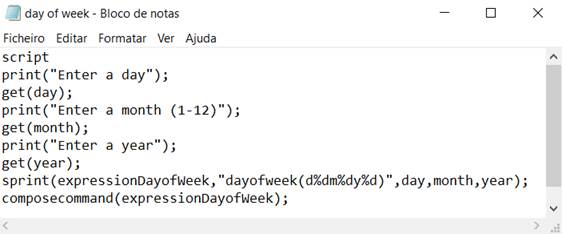
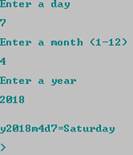
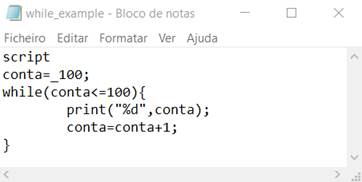
while and for

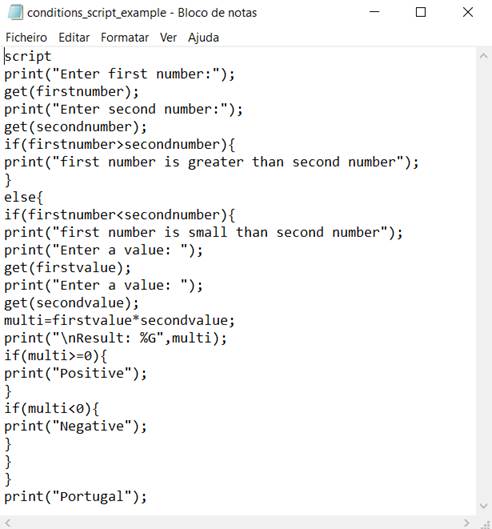
if and else
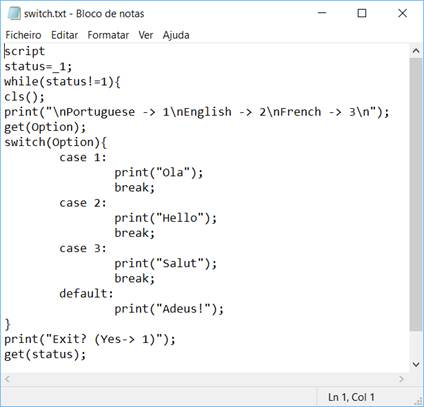
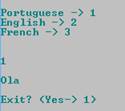
Switch case and cls()
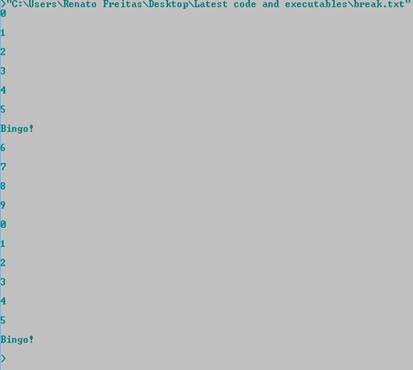
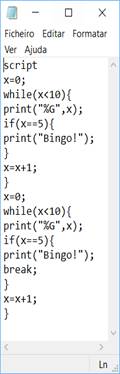
Break
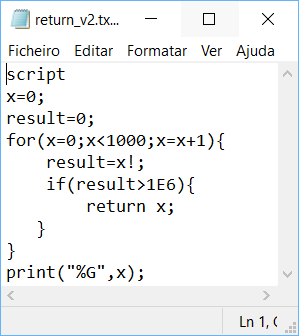
Return

Replace
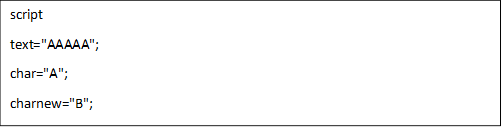 |

Change -> text="CAAAC";

Syntax of replace function:
replace(data_to_find\replacement_to_found_data\expression_with_data\0_or_1_(meaning_below))
0 means all found cases
1 means just the first found case
Straightforward way to memorize: 1/0 is equals to infinity and 1/1 is equal to 1.
 Replace By Index

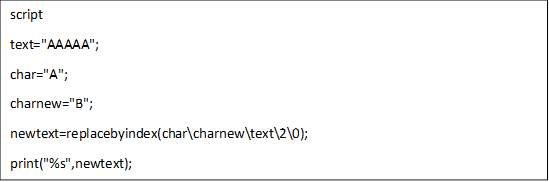
Syntax of replacebyindex function:
replacebyindex(data_to_find\replacement_to_found_data\expression_with_data\index_start_replacing\0_or_1_(meaning_below))
0 means all found cases
1 means just the first found case
Straightforward way to memorize: 1/0 is equals to infinity and 1/1 is equal to 1.
The index_start_replacing is the value of the real text index minus 1, for scripting all indexes start on 0.
 Count Occurrences

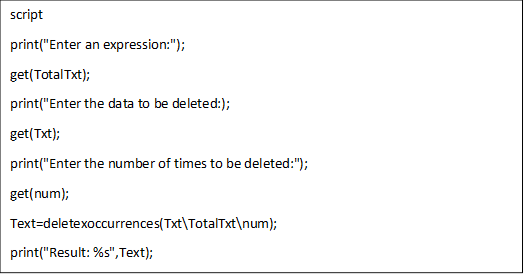
Delete X Occurrences
 |